How to Delete Text Messages on iPhone 6 Completely
Text messages are easily disposable after reading and replying your messages. There will always be some text messages on your iPhone that you will desire to delete. The texting app that comes with every iPhone is grouped into conversations.
However, how to deleting messages on iPhone 6 is not a simple task. Some data may not remove completely which can frustrate you later on. In the older versions of iPhone, delete text messages options was not erased entirely from iPhone. Then, iPhone has developed better at managing your deleted messages; the problem does not continue in the latest version of Apple’s mobile operating system. This article will educate you on how to delete text messages on iPhone 6.
Part 1: How to Delete Messages on iPhone 6 (can be recovered)
Part 2: How to Permanently Erase Text Messages on iPhone 6 ( unrecoverable) – 3 Steps
How to Delete Messages on iPhone 6 (can be recovered)
1 Erase the Single Text Message iPhone 6
Erasing single message on your iPhone is possible. It is tremendously easy if you want to delete a single message. This option helps to erase any trace of a message between you and the recipient on your iPhone. You can follow the steps below to delete messages on iPhone 6:
Step 1: Open your message on the iPhone
Step 2: Click on the conversation that contains the messages that you wish to delete
Step 3: When the conversation is open, select the message you want to delete and wait for the menu to display. Tap more when the list display.
Step 4: An icon will appear close to each message
Step 5: Click on the icon next to the message to mark the message you want to delete. A checkbox will display to indicate that the message will be removed.
Step 6: Go through all the messages you want to erase on your iPhone
Step 7: Tap the delete icon button at the left corner of your home screen to delete your message.

2 Erase Text Messages Conversation on iPhone 6
Deleting your text messages conversation at once is easy. You can follow the steps below to erase text messages conversation on iPhone 6:
Step 1: Firstly, click on messages to delete a text messages conversation
Step 2: Click on messages at the top right corner to check the list of your conversations
Step 3: When you open your conversation, you will see the list of all your messages conversation
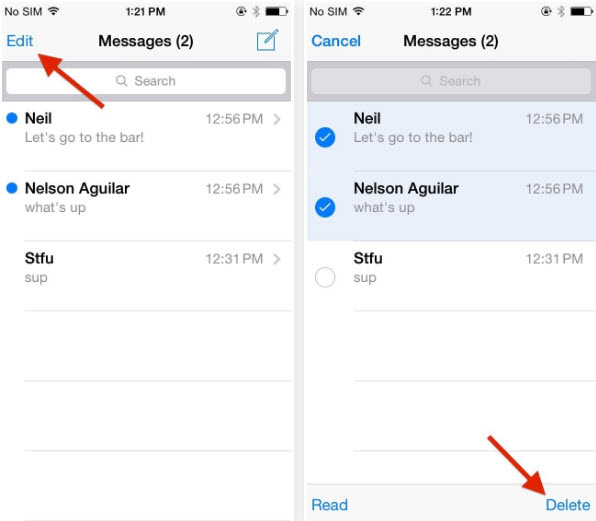
Step 4: Select the conversation you wish to delete. There are two options: Click on the Edit button at the top left corner of your screen or swipe left or right across it. Tap the icon to the left of every conversation you wish to delete from your iPhone.
Step 5: A delete icon will display at the right if you swiped across the conversation.
Step 6: If you use the “Edit” icon, a delete button will display at the bottom right corner of your screen when you select only one conversation.
Step 7: Finally, select any of the buttons to delete the conversation.
How to Permanently Erase Text Messages on iPhone 6 ( unrecoverable) – 3 Steps
Step 1: Delete iCloud Text Message Backup
Step 2: Delete iTunes Text Message Backup
Step 3: Permanently Erase Text messages and Deleted Text messages on iPhone 6
Step 1 Delete iCloud Text Message Backup
iCloud helps to back up all data on your iPhone and saves you from headaches if your iPhone gets missing. It helps to keep information that you may not want to keep like old text messages. If you feel that your iCloud backup is keeping some unwanted texts message, you can follow the steps below to delete iCloud text messages backup:
Step 1: Click on your device settings and tap on “General settings.”
Step 2: Click on “iCloud and Storage Usage”. After, click on the “Manage Storage” under the iCloud section.
Step 3: Click on the message you want to delete under “Backup options.”
Step 4: Scroll down and click “Delete Backup.”
Step 5: Click on “Delete”, and the backup option will be erased completely.

Step 2 Delete iTunes Text Message Backup
If you have low storage on your iCloud to back up to the cloud, you can also use iTunes backup. If the backup contains unwanted messages, you can follow these steps to delete iTunes text message backup:
Step 1: Launch your iTunes.
Step 2: Select the “iTunes” on your window. After select “Preferences.”
Step 3: Tap on “Devices”. A list of devices with the backup stored on your computer will display.
Step 4: Click on the backup you want to delete.
Step 5: Select “Delete Backup” option at the bottom right corner on your menu bar.
Step 6: Click on “Delete” and press “OK” to exit the preferences.

Step 3 Permanently Erase Text messages and Deleted Text messages on iPhone 6 Also Read:Remove the U2 Album from iPhone in 2019
Also Read:5 Best Video Joiner Free for MP4 2018


No comments:
Post a Comment