Wednesday, 7 August 2019

Download iOS 13 and iPadOS 13 Beta 6


With the public release of iOS 13 and iPadOS 13 just over a month away, Apple today released the sixth developer beta of iOS 13 and iPadOS 13. The new developer beta of both OSes lands just 10 days after iOS 13 and iPadOS 13 beta 5 was released.

iOS 13 and iPadOS 13 beta 6 are unlikely to bring any major new changes. They are likely all about fixing the bugs and improving the stability of the OSes before their public release in September.

Since the public release of iOS 13 and iPadOS 13 is close, Apple will now move to a weekly beta release cycle from its previous timeframe of releasing one beta every two weeks. Instead, the company will now release a new beta of iOS 13 and iPadOS 13 every week until the first week of September.
Download iOS 13 and iPadOS 13 Beta 6

If you are already running iOS 13 Developer Beta 5 on your iPhone, you just need to go to Settings -> General -> Software Update and download the beta 5 OTA. The same steps are also applicable for downloading iPadOS 13 Beta 6.

Apple will also release the third public beta of iOS 13 and iPadOS 13 to developers later this week.
iOS 13 Features

iOS 13 comes with a number of major new features including a redesigned Reminders app, faster Face ID, system-wide Dark mode, improved Safari, and more.

1. Dark Mode

A system-wide Dark mode is probably the highlight of iOS 13. It stretches from the Lock screen to the widgets screen to Apple’s own apps. Even the keyboard gets a better version of the dark mode. Dark mode can be enabled easily from the Control Center.

2. New Reminders App

There is a new smarter and enhanced Reminders app in iOS 13. It uses Natural Language Processing which makes it easier to add reminders and tasks.

Read: iOS 13 Reminders App Hands-On

3. Redesigned Volume HUD

The new Volume HUD appears in the top-left corner of the screen in an unintrusive manner. It first shows up as a full-sized slide. But it immediately shrinks and becomes unintrusive.


4. Improved Safari

Safari has received a major update in iOS 13 and iPadOS 13. It now features a dedicated Download manager which means one can now use the browser to download files.

On iPadOS 13, Safari will now load the desktop version of websites to offer a better browsing experience.

5. QuickPath

The stock keyboard in iOS 13 has finally gained gesture-based typing known as QuickPath. This is similar to the swipe-based typing experience offered by SwiftKey and Gboard.

➤ You can read more about all the new features in iOS 13 over here.


If you have found any major or minor changes in iOS 13 beta 6 not mentioned above, make sure to drop a comment and let us know about it!

If you lost data after you updated to a new iPhone, you can always use Gihosoft iPhone Data Recovery to get the data back from the old iPhone or backup.You may also like: iphonerecovery.com

iPhone 11 Max Looks Drop Dead Gorgeous in This Concept Renders


The iPhone 11 and iPhone 11 Max have leaked in detailed CAD renderings thereby giving us a look at how the handsets will look. While the final product will have a more refined look, there’s no denying the fact that the 2019 iPhones are not going to bring anything new to the table in terms of design. Until Apple gets around to releasing the iPhone 11 series officially in September, we have some concept photos of the iPhone 11 Max from designer Hasan Kaymak to drool over.

The renders show the triple rear cameras on the iPhone 11 Max and envision the handset in a striking bold red color. The shade of black is also different and it looks more stealthy than the Space Grey color which Apple currently offers for the iPhone X/XS series.


The renders also envision iOS 13 with Dark mode which does look striking. Thankfully, leaks have already confirmed that iOS 13 will indeed come with a dark mode.

The iPhone 11 Max in the renders definitely looks slick but one must remember that these are renders. The real product is not going to look as slick, though with Apple rumored to use frosted rear glass panel on 2019 iPhone 11 series, they will at least look different from the iPhone X/XS series.

What do you think about the iPhone 11 Max as shown in the renders above? Will you buy one if the final product looks anything like this?

[Via Hasan Kaymak]

Sponsor ads:

Gihosoft RePicvid Free Photo Recovery Software provides a free photo recovery software for windows to help users recover the deleted or lost photo for free.

If you lost data after you updated to a new iPhone, you can always use Gihosoft iPhone Data Recovery to get the data back from the old iPhone or backup.You may also like: iphonerecovery.com

If you use android phones, please choose Gihosoft Android Data Recovery.With Gihosoft Android Data Recovery, no longer afraid of data loss!

iPhone Manager:Get the ultimate Gihosoft iPhone Manager. Free download for PC/Mac.


iPhone XR vs Galaxy Note 10 Comparison: Which is Better for You


Samsung is playing the value card this year with the Galaxy Note 10. By making it the smaller brother to the Note 10+, Samsung has cut some corners and removed certain features to launch the Note 10 at a lower price point. This way the handset is able to better compete with Apple’s own budget flagship, the iPhone XR. If you are wondering between the Galaxy Note 10 and iPhone XR, which one is better, read our detailed comparison below.

The Galaxy Note 10 does carry a higher retail price than the iPhone XR. However, knowing Samsung, you will find the phone with some extremely attractive trade-in offers or discounts that will bring its price close to what the iPhone XR is priced at. This makes the duel between these two devices even more interesting.

Below is how the Galaxy Note 10 compares to the iPhone XR.
iPhone XR vs Galaxy Note 10 Comparison
Design

Both phones are made of glass and sandwich an aluminum chassis. While the Note 10 is just a smaller version of the Note 10+, Apple has made a few other changes with the iPhone XR. They both feel premium in-hand, have excellent build quality, and feature wireless charging.

The Note 10 does have a higher IP68 certification while the iPhone XR tops out at IP67. Nonetheless, for daily use, the IP certifications of both devices are more than good enough.

The Note 10 lacks a notch since it has a centered hole-punch selfie camera. The notch on the iPhone XR is not really distracting, though many users might not like it. The Galaxy Note 10 comes with an S-Pen as well which is IP68 certified as well. It now has Air motion which allows you to control many aspects of the phone via simple motion gestures. This has been made possible by including 6-axis gyroscope and accelerometer inside the S Pen.


Display


iPhone XR – 6.1-inch True Tone Liquid Retina LCD display, 1792 x 828 pixels (326 ppi), No 3D Touch


Galaxy Note 10 – 6.3-inch curved Infinity-O Dynamic AMOLED, 2280 x 1080 pixels (401ppi), HDR10

The Galaxy Note 10 does not come with the same high-resolution panel as its bigger sibling the Galaxy Note 10+. Yet, the Dynamic AMOLED panel on the Galaxy Note 10 is easily among the best in the market. The iPhone XR’s 6.1-inch Retina LCD simply pales in comparison. It is the best LCD display around but its no match for the Note 10’s OLED panel.
Chipset


iPhone XR – 7nm A12 Bionic chipset


Galaxy Note 10 – 7nm Snapdragon 855 or 7nm EUV Exynos 9825

Depending on where you live, the Galaxy Note 10 comes with either a 7nm Snapdragon 855 or Samsung’s own Exynos 9825 chipset. The Galaxy S10 was also powered by the Snapdragon 855 and it is currently the best chipset available for Android devices. There’s a newer Snapdragon 855+ that was recently unveiled by Qualcomm but it is just an overclocked version of the regular chip.

As for the Exynos 9825, it is an updated version of Samsung’s Exynos 9820 found on the international variants of the Galaxy S10. It is the first chip to launch on Samsung’s 7nm EUV fabrication process. This should make it more efficient than the 8nm Exynos 9820. Despite this though, the chip is not better than the A12 Bionic in raw performance.

One area where the iPhone XR truly shines is in terms of performance. It might be a watered-down version of the iPhone XS but it packs the same A12 Bionic chip as it. The Galaxy Note 10 is fast but the A12 Bionic inside the iPhone XR is at a different level altogether.
RAM & Storage


iPhone XR– 3GB RAM | 64GB, 128GB, 256GB


Galaxy Note 10 – 8GB RAM | 256GB

The Note 10 is not as packed as its bigger sibling in this regard. Yet, it is miles ahead of the iPhone XR in this regard. The Note 10 comes with almost 2.6x times more RAM than the iPhone XR.

While both phones top out at 256GB storage, the iPhone XR ships with 64GB of base storage. The Note 10 ships with 256GB base storage. Unlike other flagship Samsung smartphones, the Galaxy Note 10 lacks a microSD card slot though which means you cannot increase its storage down the line for cheap.
Camera


iPhone XR – Single 12MP camera setup with f/1.8, 1.4um large pixels, OIS, Smart HDR, Focus Pixels, Portrait mode with advanced bokeh and Depth control


Galaxy Note 10 – Triple-camera setup, 12MP camera with variable f/1.5 – f/2.4 aperture, 1.4um pitch pixel, OIS; 16MP f/2.2 ultra-wide angle shooter; 12MP f/2.1 telephoto sensor with OIS, 2x optical zoom, Auto HDR, Super Speed Dual Pixel, Live Focus with adjustable bokeh effect

The Note 10 again beats the iPhone XR by miles in this regard. While the latter only ships with a single 12MP shooter at the rear, the Note 10 comes with a triple-camera setup. The image quality of both phones are almost at the same level but the Note 10 offers a greater level of flexibility that is missing on the iPhone. The telephoto lens and the ultra-wide angle lens on the Note 10 offer a greater degree of flexibility that photographers will enjoy.


Biometrics


iPhone XR – Face ID


Galaxy Note 10+ – In-display fingerprint scanner, Face unlock

The iPhone XR comes with a specialized TrueDepth camera system at the front for Face ID. While Face ID is generally reliable, its reliability is nowhere as close to Touch ID.

On the Galaxy Note 10, Samsung uses the front 10MP camera for face unlock. This is complemented by the ultrasonic in-display fingerprint scanner. While Samsung offers more choice, its solutions are not as secure as Face ID. Both face unlock and the under-display fingerprint scanner on the Note 10 can be fooled relatively easily.
Connectivity


iPhone XR– Dual SIM/eSIM, LTE-Advanced, Wi-Fi ac with MIMO, Bluetooth 5.0, VoLTE, NFC with reader mode


Galaxy Note 10 – Dual SIM, Cat 20. LTE (2Gbps), Wi-Fi 6, Bluetooth 5.0, VoLTE, NFC

The Galaxy Note absolutely crushes the iPhone XR in terms of connectivity. The iPhone XR does not even ship with a Gigabit LTE modem while the Note 10 is capable of reaching speeds of up to 2Gbps. It also has Wi-Fi 6 support.

Both phones do lack the headphone jack. The Note 10+ does feature a headphone jack so it is a shame to see Samsung killing it on the smaller Note.


Battery


iPhone XR – 2942Ah, USB-C fast charging, fast wired charging, 7.5W wireless charging


Galaxy Note 10 – 3500mAh, 25W fast charging, 15W wireless charging

The Galaxy Note 10 comes with a bigger battery when compared to the iPhone XR. That’s not it though. It also comes with faster wired and wireless charging. Adding insult to injury, Samsung also bundles a 25W fast wired charger with the Note 10 while Apple only bundles a 5W charger with the iPhone XR.

In terms of battery life, both phones have enough juice in the tank to easily last through a day of heavy use.


The Galaxy Note 10 might carry a higher price tag ($949) than the iPhone XR ($749). However, it offers more value for money than the latter despite making a number of compromises when compared to the Note 10+. Plus, pre-order bundles from Samsung and carriers will greatly reduce the blow of purchasing the Note 10.

What are your thoughts on the iPhone XR vs Galaxy Note 10 comparison? Which one would you pick between the two?If you lost data after you updated to a new iPhone, you can always use Gihosoft iPhone Data Recovery to get the data back from the old iPhone or backup.You may also like: iphonerecovery.com


Friday, 21 June 2019

Foxconn Founder Terry Gou Urges Apple to Move Production from China to Taiwan


Foxconn founder Terry Gou announced that he will be stepping down as chairman from July 1st. In an interview with Bloomberg, Gou said “I am urging Apple to move to Taiwan,” when he was asked if Apple would move the production outside China. Foxconn is one of the major manufacturers for iPhone and runs the fabled factory in Zhengzhou, China.

The statement from Foxconn founder comes at a time when Apple is reeling under the pressure of trade war between the U.S and China. Trump administration is gearing up to impose 25 percent tariffs on phones, laptops, and tablets manufacture in China. Needless to say, this move will adversely affect Apple’s ability to get products manufactured from China.

Apple has requested the authorities to exempt their products from the tariff. The company reasons that this move would “result in a reduction of Apple’s US economic contribution” and “weigh on global competitiveness.”

Meanwhile, Apple seems to be bracing for the impact and has already asked major suppliers including Foxconn to study the feasibility of moving up to 30 percent of its production out of the country. Currently, Apple is exploring the possibilities. Apparently, India and Vietnam were on the top of the list, followed by Mexico, Malaysia, and Indonesia.
Our Take

As expected the ongoing trade war is set to damage the economic prospects for both the countries. People in China are calling for a boycott of Apple products. A report also claims that Apple iPhone sales could halve in China. If this happens, Apple’s global sales could drop significantly as China accounts for 18% of Apple Sales.

Apple is trying to cajole the Trump administration to drop the tariffs. The company has warned Trump that additional China tariffs will help rivals and the cost of Apple products will rise significantly. It is worth noting that Apple has been successful in lobbying against extra tariffs in the past. Last year, Apple successfully lobbied and got smartwatches and Bluetooth headphones removed from the list of goods that the U.S added an extra tariff of 10 percent.Sponsor ads:

Gihosoft RePicvid Free Photo Recovery Software provides a free photo recovery software for windows to help users recover the deleted or lost photo for free.

If you lost data after you updated to a new iPhone, you can always use Gihosoft iPhone Data Recovery to get the data back from the old iPhone or backup.You may also like: iphonerecovery.com

iPhone Manager:Get the ultimate Gihosoft iPhone Manager. Free download for PC/Mac.

Read more:Go Live on Tik Tok/Musical.ly in 2019

Read more:best youtube downloader


What do you think of the ongoing trade wars between the U.S and China? Let us know in the comments below.

[via-Bloomberg]

Thursday, 20 June 2019

Oppo Will Demo Smartphone with Under-Display Camera at MWC 2019 Shanghai


Apple might be content with launching another iPhone lineup this year with a notch but Android OEMs have all but made up their mind to get rid of the dreaded notch on their smartphones. After teasing a smartphone with an under-display camera at the front, Oppo has now announced that it would be demoing the smartphone at MWC 2019 Shanghai.

The event is scheduled to take place from June 26-29 later this month. It is important to note that Oppo is only promising to demo the new smartphone and not launch it.

Apart from Oppo, Xiaomi and Samsung are also working on smartphones with an under-display camera at the front.

It is clear that while the under-display camera technology has matured enough to reach demo stages, it is simply not good enough to be used in consumer devices yet. Right now, the image quality of the under-display camera is simply not good enough for use in consumer devices. However, given the R&D that is being done by companies like Samsung, Oppo, and others on this front, it is just a matter of time before this technology is ready for use in consumer smartphones.
Our Take

It will be interesting to see what Apple does when under-display camera technology is ready. Unlike Android OEMs, Apple uses the notch at the front of the iPhone X/XS series to include advanced sensors required for the TrueDepth camera and Face ID. The company might possibly be able to move the front camera under the display on future iPhones but it would still need to figure out what to do for the TrueDepth sensors.

Read more:vidics alternatives

Read more:football live streaming sites

Read more:fmovies to

Read more:pubfilm alternatives

Read more:best android equalizer

Tuesday, 14 May 2019

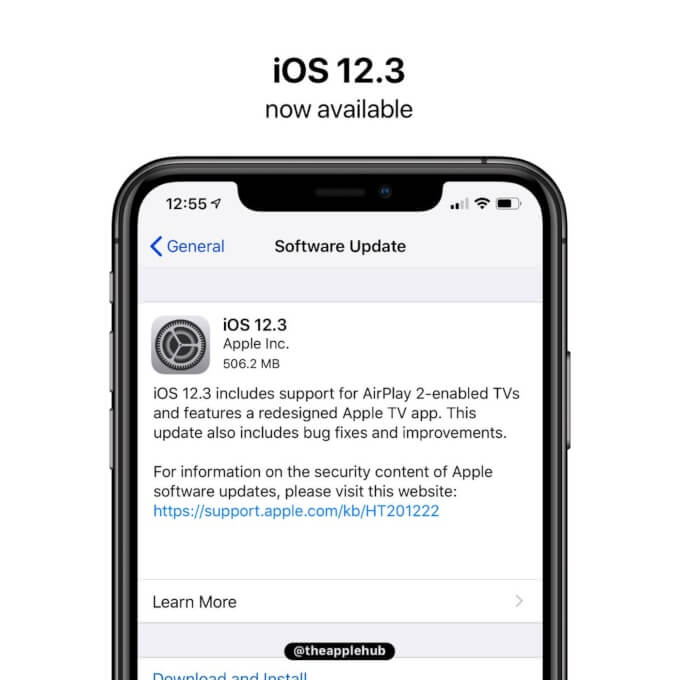
Download iOS 12.3 (final) for iPhone, iPad, and iPod 2019


WHAT’S NEW IN IOS 12.3?

iOS 12.3 (final) comes with a build number of 16F156 and weighs about 2.89GB on all compatible devices.

The main feature of this operating system update is the new all Apple TV app and the addition of AirPlay-centric features.


Check out the complete list of all improvements, fixes, and new features this update brings below.
APPLE TV APP


User interface completely redesigned with the addition of collections compiled by editors and personal recommendations.


Subscriptions can now be shared with up to six family members without any new applications, accounts, or passwords.


Buy or rent new releases, including a complete catalog of over 100,000 movies and the largest 4K HDR title selection.


Added support for AirPlay 2 on LG, Samsung, Sony, and Vizio TVs.
AIRPLAY 2


AirPlay 2 now supports sharing videos, photos, music, and more from iPhone and iPad directly to an AirPlay 2-enabled smart TV.


One-Click Playback automatically plays the selected TV show or movie on the most recently used device depending on time and location.


Siri’s suggestions for watching movies and TV shows now include AirPlay.
OTHER FIXES AND IMPROVEMENTS


Face ID is snappier.


The “For You” section in Apple Music is updated several times a day.


Fixes a bug in WiFi calls that caused calls to get interrupted.


Fixes a bug that could prevent Apple TV Remote from pausing/controlling video or adjusting volume on supported receivers.


Fixes a bug that did not show track information from a connected iPhone on the car display.

Since this is a final public update, you can get it straight from the “Software Update” section in Settings > General. Alternatively, you can use iTunes to upgrade your device or perform a clean restore using the IPSW links below.

Before you update, be sure to back up your data and charge your device.
IOS 12.3 IPSW DOWNLOAD
IPHONE


iPhone SE, iPhone 5s


iPhone 6s, iPhone 6


iPhone 6s Plus, iPhone 6 Plus


iPhone 8, iPhone 7


iPhone 8 Plus, iPhone 7 Plus


iPhone X


iPhone XS


iPhone XS Max


iPhone XR
IPAD


iPad Air, iPad mini 2


iPad mini 4, iPad Air 2, iPad mini 3


iPad (5th generation), iPad (6th generation)


iPad Pro (9.7‑inch)


iPad Pro (12.9‑inch)


iPad Pro (10.5-inch), iPad Pro (12.9-inch) (2nd generation)


iPad Pro (11-inch), iPad Pro (12.9-inch) (3rd generation)


iPad mini (5th generation), iPad Air (3rd generation)
IPOD


iPod touch (6th generation)
SHOULD YOU UPGRADE?

iOS 12.3 comes with a whole host of bug fixes, enhancements, and AirPlay/Apple TV-centric features. If your device is still running a beta version, we highly recommend updating to the latest update.

iOS 12.3 is most probably the last major iOS 12 update as the WWDC is just a few weeks away now.

Apple will still continue seeding developer beta builds until iOS 13 is released officially in September, nevertheless.

Sponsor ads:

Gihosoft RePicvid Free Photo Recovery Software provides a free photo recovery software for windows to help users recover the deleted or lost photo for free.

If you lost data after you updated to a new iPhone, you can always use Gihosoft iPhone Data Recovery to get the data back from the old iPhone or backup.You may also like: iphonerecovery.com

If you use android phones, please choose Gihosoft Android Data Recovery.With Gihosoft Android Data Recovery, no longer afraid of data loss!

iPhone Manager:Get the ultimate Gihosoft iPhone Manager. Free download for PC/Mac.

Tuesday, 23 April 2019

Apple Seeds iOS 12.3 Beta 3 to Developers [Updated]


In March, Apple officially released iOS 12.2 to the public. That software wasn’t a major upgrade, but it did welcome things like Apple News+ to the mix.

Update: Apple has seeded the corresponding public beta to public beta testers. The new software can be installed as an over-the-air update on registered devices.

The original article continues below.

Now, Apple is moving ahead with betas for the next update to its mobile operating system. Today, Apple officially seeded the third developer beta of iOS 12.3. This is appears to be a minor update in scale, with the company focusing primarily on behind-the-scenes bug fixes and general overall improvements. However, the company did lay the groundwork for the public launch of its revamped TV app later this year with the first developer beta. Now, with the third beta, Apple will continue to tweak the formula to get it ready for the public.

If any additional discoveries are made, we will update this post accordingly.

To update, developers that have registered their supported iOS devices simply need to open Settings –> General –> Software Update and then follow the onscreen instructions.

Apple typically kicks things off with a developer beta, but a corresponding public beta of the same software will likely launch in short order. If you don’t want to wait for the public beta, and want to try out the developer beta –but you aren’t a developer yourself– you can do so for free by following the method through this link.Sponsor ads:

Gihosoft RePicvid Free Photo Recovery Software provides a free photo recovery software for windows to help users recover the deleted or lost photo for free.

If you lost data after you updated to a new iPhone, you can always use Gihosoft iPhone Data Recovery to get the data back from the old iPhone or backup.You may also like: iphonerecovery.com

If you use android phones, please choose Gihosoft Android Data Recovery.With Gihosoft Android Data Recovery, no longer afraid of data loss!


Friday, 15 March 2019

The best IPTV apps for your Android device


The best IPTV apps for your Android device
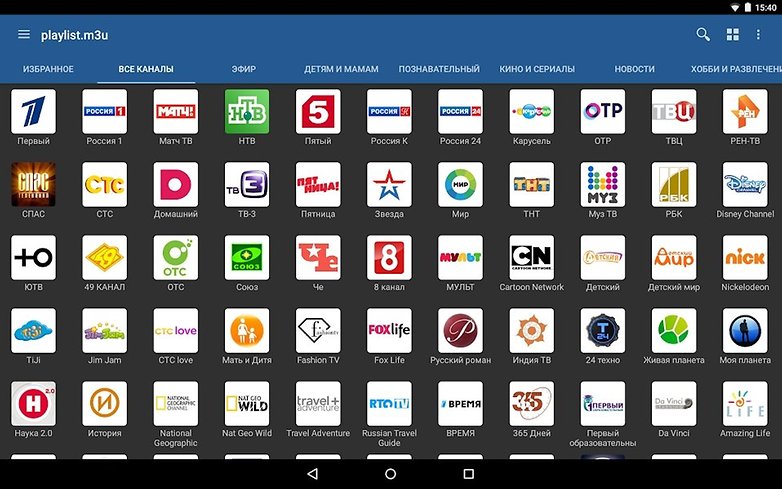
IPTV, or Internet Protocol television, is the platform that allows you to watch television channels via an Internet connection. In order to do this, you'd usually need to register for certain online services or download software to your PC. But how can you enjoy your favorite channels on your smartphone? As usual, the solution to all this is apps!

In this useful guide we will show you, in our opinion, the best IPTV apps currently available on Google Play Store which you can install on your Android device, smartphone or tablet. Of course, we remind you that, in order to take advantage of these apps, your device must be connected to the Internet via Wi-Fi or mobile data (watch out for consumption).
GSE SMART IPTV

This completely free application (with optional in-app purchases) allows you to watch TV channels via streaming, using lists in M3U or JSON format, and which you can upload via HTTP or FTP links. The interface is very intuitive, allows you to check out the television guide (EPG) and contains an integrated video player full of useful commands for certain functions. There is also the possibility of transmitting content from your smartphone to your TV via Chromecast or Apple TV.

GSE SMART IPTV
IPTV Extreme

IPTV Extreme is one of the most downloaded and appreciated apps in this category. Free, simple and intuitive, it offers all the features you'd expect. Every user can find what they need when they want to enjoy a little TV on their smartphone. Here, we also find an integrated video player, support for Google Chromecast, a Parental Control function, support for M3U lists and automatic updates of the EPG.

IPTV Extreme
TVCast

TVCast differs from the others on this thanks to its simple and minimal interface in line with Google's Material Design, which leaves no room for doubt. It supports both M3U and M3U8 and is available free of charge. As you may have guessed from the name, this application is oriented to content casting: in fact, it can broadcast the contents of its channel list on a variety of devices, including Amazon Fire TV, Roku, Apple TV, Chromecast and the TVCast Web Player (the proprietary software to be able to transmit to your PC).

The minimalist design of the interface is what makes TV cast stand out. / © Play StoreTVCast - Watch IPTV everywhere
IPTV

The name of this application is practically a guarantee for variety. Although it does not have the most beautiful graphical interface ever, IPTV is the preferred app for over 10 million users. Among its best features, you will find frequent updates, speed, excellent integrated player, support for M3U and XSPF lists, support for EPG, the option to display the channel list in three modes (list, grid or titles) and automatic reconnection in case of buffering or blocks.

IPTV is the favorite app for over 10 million users. / © Play StoreIPTV

Which is your app of choice when it comes to watching TV channels on your smartphone or tablet? Let us know in the comments below.Also Read:jihosoft Free iPhone Data Recovery

Sponsor ads:

Gihosoft Free iPhone Data Recovery:https://www.gihosoft.com/iphone-data-recovery-free.html

Gihosoft iPhone Data Recovery Free

Free iPhone Data Recovery Software for Windows/Mac

Recover up to 12+ types of files, including contacts, SMS, photos, WhatsApp, Viber, notes, etc.

Restore lost data from iOS devices directly or from iTunes and iCloud backup

Recover iPhone data lost due to iOS upgrade/jailbreak, accidental deletion, device lost or broken

Support all the latest iPhone, iPad and iPod Touch

Both Free and Pro version.

If you lost data after you updated to a new iPhone, you can always use Gihosoft iPhone Data Recovery to get the data back from the old iPhone or backup.You may also like: iphonerecovery.com

If you use android phones, please choose Gihosoft Android Data Recovery.

With Gihosoft Android Data Recovery, no longer afraid of data loss!

Must read:Youtube video downloader for pc

Gihosoft RePicvid Free Photo Recovery Software provides a free photo recovery software for windows to help users recover the deleted or lost photo for free.

Jihosoft Android Data Recovery: the best Android Data Recovery software for Windows and Mac to recover deleted contacts, messages, photos, videos, WhatsApp and etc from Android devices.Tips:How to transfer messages from iPhone to iPhone

Jihosoft File Recovery:Recover deleted, Lost, formatted, or corrupted files from PC, flash drive and memory card easily & safely

Tuesday, 12 March 2019

Apple Says Someone Tried to Sway the Testimony of Its Former Engineer in Ongoing Qualcomm Case

Apple Says Someone Tried to Sway the Testimony of Its Former Engineer in Ongoing Qualcomm Case


The ongoing legal battle between Apple and Qualcomm has been full of twists and turns. As per Apple, the tech for one of the patents Qualcomm alleges Apple has infringed was helped co-founded by one of the company’s former engineers. However, Arjuna Siva, former Apple engineer, in his testimony said that while he contributed ideas to the technology, he does not claim to be an inventor.

Now, Apple says that they have reason to believe that someone tried to sway Siva’s testimony, though the company does not know who.

In a filling on Tuesday, Apple counsel Juanita Brooks wrote that the iPhone maker had grounds to suspect someone was trying to sway Arjuna Siva’s testimony, though she said the company doesn’t know who. The iPhone maker has argued that Siva, a former Apple engineer, co-invented technology in one of three disputed Qualcomm patents and should be named on it.

Apple had made a similar claim last week which Qualcomm called out as “ridiculous.” Judge Dana Sabraw also said that there was “no evidence” on the basis of which Apple was making the allegation.

Siva’s appearance in the court itself has been full of drama. He first backed out of his appearance after retaining a new lawyer, Matt Warren, who suggested that he does not attend the hearing unless subpoenaed. Warren was previously one of the partners at the law firm Quinn Emanuel which currently represents Qualcomm. This led Apple to file subpoenas for both Siva and Warren to appear in the court.

The patent in question revolves around how quickly a phone connects to the internet after booting up. As per Apple, their engineer Arjuna Siva came up with the idea before the release of the first iPhone in 2011 featuring a Qualcomm chip. Apple and Qualcomm were then working on a modem that met its requirements and could be used in its devices.

Despite Apple’s initial claims about someone trying to sway Siva’s testimony, Apple’s counsel Brooks said that the engineer’s testimony has been consistent with original plans so they see no reason for “further action”

[Via Cnet]Also Read:jihosoft Free iPhone Data Recovery

Sponsor ads:

Gihosoft Free iPhone Data Recovery:https://www.gihosoft.com/iphone-data-recovery-free.html

Gihosoft iPhone Data Recovery Free

Free iPhone Data Recovery Software for Windows/Mac

Recover up to 12+ types of files, including contacts, SMS, photos, WhatsApp, Viber, notes, etc.

Restore lost data from iOS devices directly or from iTunes and iCloud backup

Recover iPhone data lost due to iOS upgrade/jailbreak, accidental deletion, device lost or broken

Support all the latest iPhone, iPad and iPod Touch

Both Free and Pro version.

If you lost data after you updated to a new iPhone, you can always use Gihosoft iPhone Data Recovery to get the data back from the old iPhone or backup.You may also like: iphonerecovery.com

If you use android phones, please choose Gihosoft Android Data Recovery.

With Gihosoft Android Data Recovery, no longer afraid of data loss!

Must read:Youtube video downloader for pc

Gihosoft RePicvid Free Photo Recovery Software provides a free photo recovery software for windows to help users recover the deleted or lost photo for free.

Jihosoft Android Data Recovery: the best Android Data Recovery software for Windows and Mac to recover deleted contacts, messages, photos, videos, WhatsApp and etc from Android devices.Tips:How to transfer messages from iPhone to iPhone

Jihosoft File Recovery:Recover deleted, Lost, formatted, or corrupted files from PC, flash drive and memory card easily & safely

Monday, 11 March 2019

Apple Announces ‘It’s Show Time’ Event on March 25; Expected to unveil TV Streaming and News Subscription Service


Apple has sent out media invites for its “It’s Show Time” event that will be held on March 25 at the Steve Jobs Theater in California. The event will start at 10:00 a.m. Pacific Time.

The tagline of the event makes it clear that Apple will be using the event to showcase its TV streaming service and premium Apple News subscription service.

The TV streaming service will only be announced by Apple during the event, with its actual launch still a few months away. The company is already working on over 2 dozen original TV shows and content for its streaming service which includes major stars like Reese Witherspoon, Jennifer Aniston, Steve Carell, and more.
Also Read:4 Easy Ways To Know if Your iPhone Is Locked Or Unlocked
Also Read:How to Make Your Phone Number Private on Android or iPhone
Also Read:HTC Sync Manager ReviewAlso Read:How to Recover Formatted Hard Drive for Lost Files

View image on Twitter


Matthew Panzarino

✔@panzer

Please join us for an Apple special event

at the Steve Jobs Theater in Cupertino.


March 25, 2019

10:00 a.m.


The email played a short film reel countdown animation on opening.

1,562

3:20 AM - Mar 12, 2019

588 people are talking about this

Twitter Ads info and privacy

As for the Apple News subscription service, reports point to Apple charging customers $9.99/month for it and giving them access to content from major publications and magazines. As of now, it is still unclear which publishers are onboard Apple’s premium News service offering as its 50 percent revenue split demand has left.

Apple could also possibly talk about the AirPods 2, AirPower, iPad mini 5, and the 7th gen iPad at the event. Even if it does not, these devices should go on pre-order or sale right after the event. Apple is focusing more on its Services business with this event so it is unlikely that we will see the company make any hardware announcements on stage.

Like other Apple events, the company will also be streaming this event on its website for interested folks to see from all over the world.

Are you excited about Apple’s March 25th event? Let us know in the comments below.Also Read:8 Best To-do List Apps for Your iOS Device to Make Your Work Done
Also Read:Windows 10 Blue Light Filter: Learn Something about Your Eyes Saver

Also Read:Top 5 Best Free File Recovery Software 2019 for Windows and Mac

18 Best Indian Web Series on YouTube You Can’t Miss 2019
Also Read:3 Ways to Use WhatsApp without a Phone Number or SIM in 2019


Like this post? Share it!

Monday, 4 March 2019

How to Transfer Music from iPad to Computer with iTunes? 2019 Guide


How to Transfer Music from iPad to Computer with iTunes?

Not convinced that iMyFone TunesMate is for you? No problem - this short guide will show you how to transfer songs from your iPad music library to computer with iTunes.

Step #1 - Install iTunes on your computer (if it isn’t already installed) and launch the program.

Step #2 - After connecting your iPad, click the device icon at the top of iTunes and select the “Music” menu from the sidebar.

Step #3 - Click on the “Sync Music” box to enable this option and select either “Entire music library” or “Selected playlists, artists, albums, and genres”.


Step #4 - Hit the “Apply” button at the bottom-right.

Step #5 - From now on, each time you sync your iPad with iTunes your music will be transferred.

As always there are a few disadvantages to using iTunes, but if you don’t have a problem using it then here you go!

Also Read:jihosoft Free iPhone Data Recovery

Sponsor ads:

Gihosoft Free iPhone Data Recovery:https://www.gihosoft.com/iphone-data-recovery-free.html

Gihosoft iPhone Data Recovery Free

Free iPhone Data Recovery Software for Windows/Mac

Recover up to 12+ types of files, including contacts, SMS, photos, WhatsApp, Viber, notes, etc.

Restore lost data from iOS devices directly or from iTunes and iCloud backup

Recover iPhone data lost due to iOS upgrade/jailbreak, accidental deletion, device lost or broken

Support all the latest iPhone, iPad and iPod Touch

Both Free and Pro version.

If you lost data after you updated to a new iPhone, you can always use Gihosoft iPhone Data Recovery to get the data back from the old iPhone or backup.You may also like: iphonerecovery.com

If you use android phones, please choose Gihosoft Android Data Recovery.

With Gihosoft Android Data Recovery, no longer afraid of data loss!

Must read:Youtube video downloader for pc

Gihosoft RePicvid Free Photo Recovery Software provides a free photo recovery software for windows to help users recover the deleted or lost photo for free.

Jihosoft Android Data Recovery: the best Android Data Recovery software for Windows and Mac to recover deleted contacts, messages, photos, videos, WhatsApp and etc from Android devices.Tips:How to transfer messages from iPhone to iPhone

Friday, 1 March 2019

Add Storage to iPad? Find Tips Here!


Method 1: Upgrade Storage of iCloud

Upgrade storage of iCloud is also a great idea to add storage to iPad. By default, you have 5GB storage on iCloud. If you are willing to spend a few bucks, then it is recommended that you upgrade your iCloud storage by buying a suitable storage plan. An upgraded storage plan will allow you to save more media while paying as little as $0.99/month for 50GB of iCloud storage. Follow these steps to buy more iCloud storage:


Open Settings app on your iPad.


Navigate to Apple ID > iCloud > Manage Storage.


Now select Change Storage Plan option.


Choose the plan according to your needs and then tap Buy to purchase the selected iCloud storage plan.


Method 2: Use a Wireless Hard Drive

Adding another hard drive is one of the most traditional ways to expand storage. However, since iPad cannot work with traditional USB external drives, you will need to buy a wireless hard drive to expand the storage. Wireless hard drives can communicate with your iPad through a secured Wi-Fi connection and are a great way to add storage to your iPad. You can save your entire iPad media collection on the wireless hard drive and then easily access it whether you are in the house or away from home. Most wireless hard drives support uploading documents, photos, and videos.
Method 3: Erase Some Media Files

Media files, particularly videos and music take a lot of space. Erasing such content from your iPad can really help free up space and make room for other things.


Open Settings app on your iPad.


Navigate to General > Usage > Manage Storage.


Now select the Videos app and review your videos. Each video stored on your iPad will be shown in this section along with the size.


Select a video, tap Edit and then select '-' icon next to it. The video will be deleted.


Similarly, you can erase your music and photos as well.


Don't Miss: 5 Practical Tips to Fix iPad Storage Almost Full Problem
Bonus Tip: How to Check the Storage on iPad?

Every iDevice has a built-in feature that monitors the storage of the device and analyzes which content is using how much space. With this feature, you can easily check the storage on your iPad.

Follow these instructions:


Open Settings app on your iPad.


Navigate to General > [Device] Storage. There, you will see a list of apps installed on your iPad as well as how much storage each of the app is using.


You can get more information about the storage usage of an app by tapping its name.


Also Read:4 Best Chrome Extensions to Download YouTube Videos
Also Read:Top 5 Legal Websites to Download Free Ringtones for iPhone XS/X/8/7/6s/6
Also Read:How to Go Live on Tik Tok/Musical.ly in 2019

How to Tell If Someone is Tracking Your iPhone 2019

How to Tell If Someone is Tracking Your iPhone 2019

Do you suspect that someone is tracking your iPhone? With so many ways to track data on mobile devices, you may be justified in your paranoia. But how can you tell for sure? Well, there are several ways you can detect the presence of spy software on your device. For someone to track your iPhone and have access to your iPhone’s data, they may need to install spy software on your device.

In this article, we will share with you several ways on how to tell if someone is tracking your iPhone and how to remove it to prevent the tracking action in the future.
1. How to Tell if Your iPhone is Being Tracked

There are several indicators that can point towards the presence of spy software on your iPhone. Some of the most common ones include the following:
Noise During a Call

Hearing background noise when making or receiving a call can be as a result of a poor connection. But it can also be an indicator that spy software is installed on your device. This is because some spy software can record phone calls which can cause the noises you hear during a call. These noises can range anywhere from beeping, static, clicking and even actual voices.


More Power Consumption

Spy software installed on your device may also cause a sudden increase in battery usage. If you notice that you all of a sudden have to charge you battery more often than you use to, it is very likely that someone is tracking your iPhone. Although this is an indicator, it is worth noting that your battery life will diminish as your device gets older. What you need to watch out for is sudden battery drains.


Increase in iPhone Data Usage

If you have noticed a sudden spike in the data usage on your iPhone, this is also an indicator of the presence of spy software on your device. There are certain types of Spy software that require an internet connection to send the collected data to whoever is tracking your device. This process may require a lot of data. To assess the amount of data being used, use an app like Data Usage for iPhone to track your data usage.
iPhone Shuts Down Randomly

Does your iPhone sometimes shutdown even when it is fully charged. If this happens a lot, you might want to check the device for unwanted spy software. Low-quality spy software can cause your device to malfunction, thereby causing it to shut down at inopportune moments.
2. How to Delete Tracking Apps

If your iPhone is exhibiting all of the symptoms we’ve mentioned above, it is very likely that someone is tracking your iPhone location or iPhone data. The obvious thing to do to prevent someone from tracking your device is to remove the spy software on your device. Doing that is not as easy as uninstalling an app like you would ordinarily, but there are several steps you can take to remove them. They include the following:
Change to a Strong Password

One of the easiest ways to stop someone from tracking your iPhone is to change the password you’re using. Keep in mind that this will not remove any tracking or spy app that may be installed on your device, but it will keep it from sending any information to the person tracking you.

It is important to ensure that the password you chose is very strong. We have the tendency to use the same password for all accounts and while this may be easy, it does open up all your devices to hacking and other security issues. When you change your password ensure you do so for every service you’ve signed into on our iPhone and also make sure that no one can access it.
Upgrade iOS Version

Upgrading your device to the latest iOS 12 can stop the tracking app from working correctly. This is especially true if the tracking app was compatible with the older version of iOS. Upgrading your iOS can also have the effect of removing certain apps and settings that could be harmful to the device and may very well eliminate the tracking app on your device.


Refresh the Device

If there is no update, the next best thing to eliminate the tracking app from your system would be to refresh the device by doing a factory reset. This is the most effective way to remove the tracking app since a factory reset will remove all apps and settings from the device.

It is important to ensure that you have a backup of all the data on your device before attempting a factory reset. You should also note that a factory reset may void the warranty on your device.

To factory reset an iPhone, follow these simple steps:

Step 1: Make sure that you have an iCloud or iTunes backup of the data on your device. If you don’t have the backup, take a moment to create one. Go to Settings >iCloud > Backup and ensure iCloud Backup is turned on before tapping “Back Up Now.” Or plug in the device to your computer and create a backup in iTunes.

Step 2: With a Backup of all your data, go to Settings > General > Reset and then tap “Erase All Contents and Settings.

Step 3: Enter your passcode when prompted and then tap on “Erase iPhone.”

You may need to enter your Apple Password to complete the process. Once it is done, the iPhone will go back to the Set-up screen. Set it up as new and restore it from a backup. The tracking app should no longer be on the device.


Tracking apps can be installed on your device without your knowledge. But now you know the signs to look out for and how to eliminate them should you find them.

Sponsor ads:

Gihosoft Free iPhone Data Recovery:https://www.gihosoft.com/iphone-data-recovery-free.html

Gihosoft iPhone Data Recovery Free

Free iPhone Data Recovery Software for Windows/Mac

Recover up to 12+ types of files, including contacts, SMS, photos, WhatsApp, Viber, notes, etc.

Restore lost data from iOS devices directly or from iTunes and iCloud backup

Recover iPhone data lost due to iOS upgrade/jailbreak, accidental deletion, device lost or broken

Support all the latest iPhone, iPad and iPod Touch

Both Free and Pro version.

If you lost data after you updated to a new iPhone, you can always use Gihosoft iPhone Data Recovery to get the data back from the old iPhone or backup.You may also like: iphonerecovery.com

If you use android phones, please choose Gihosoft Android Data Recovery.

With Gihosoft Android Data Recovery, no longer afraid of data loss!

Must read:Youtube video downloader for pc

Gihosoft RePicvid Free Photo Recovery Software provides a free photo recovery software for windows to help users recover the deleted or lost photo for free.

Jihosoft Android Data Recovery: the best Android Data Recovery software for Windows and Mac to recover deleted contacts, messages, photos, videos, WhatsApp and etc from Android devices.Tips:How to transfer messages from iPhone to iPhone


jihosoft Free iPhone Data Recovery

Thursday, 28 February 2019

[Fixed] iPhone Could Not Be Activated Because the Activation Information Could Not Be Obtained from the Device 2019

[Fixed] iPhone Could Not Be Activated Because the Activation Information Could Not Be Obtained from the Device 2019
Common Tips You Can Try
Tip 1. Use an Old SIM Card to Activate iPhone or iPad

Ensure that your iPhone has a SIM card within before attempting to activate it, and if that SIM card is not working for you, try swapping with an old SIM card that worked with this iPhone. Make sure that the SIM card is properly inserted the SIM card tray to get detected by the device. Call your carrier to help you in this regard, if both SIMs fail to respond.


Tip 2. Force Reboot iPhone

To resolve the error that "this iPhone could not be activated because the activation information could not be obtained from the device", you can try force rebooting the iPhone following the below mentioned steps.

iPhone 6S, SE or older models–


Concurrently hold down the 'Home' and 'Sleep/Wake' keys unless you see the Apple logo appearing on screen.


Quit holding the keys and allow the iPhone to start.


iPhone 7/7 Plus –


Press and hold the 'Power/Lock' and 'Volume Down' keys concurrently as long as the Apple logo doesn't appear on screen.


Let your iPhone to restart.


iPhone 8/iPhone X –


Press and instantly un-hold the 'Volume Up' key, then repeat it with the 'Volume Down' key.


Push and hold the 'Power' key till the Apple logo surfaces on screen. Allow your iPhone to get restarted.


Tip 3. Check Internet Connection

If you could not activate iPhone, even after trying the above methods, then you need to check out the internet connection. It is recommended to activate your iPhone using Wi-Fi. So, ensure that you have an active internet connection and Apple's servers are not blocked on your device. You can even activate your iPhone using a different Wi-Fi and see if it works for you.Also Read:XD Card Recovery – Recover Deleted Photos from xD-Picture Card
Also Read:How to Convert SWF to MP4 on Mac or Windows
Also Read:7 Best iPhone Photo Editor Apps To Achieve Filter and Psychedelic Look
Also Read:5 Best Free Movie Streaming Sites like Pubfilm to Watch Movies Online 2019


3. Restore with iTunes using DFU Mode (Data Erased)

For fixing this iPhone activation failure, you can also opt for restoring your iPhone using DFU mode with iTunes. Please note that your data will be completely wiped. Here are the steps:


Launch iTunes after connecting your iPhone and your computer.


You need to concurrently push and hold the 'Sleep/Wake' and 'Volume Down' (iPhone 7 and newest)/'Sleep/Wake' and 'Home' (iPhone 6S and previous) keys roughly for 10 seconds.


Let go of the 'Sleep/Wake' key. Once you see the 'iTunes has detected an iPhone in recovery mode' notification, release the 'Volume Down' (iPhone 7 and newest)/ 'Home' (iPhone 6S and previous) key. If you are using iPhone 8 or iPhone X, you can check the instruction shown on iMyFone Fixppo.


As your iPhone enters the DFU mode, your iPhone will stay on a black screen. Click the 'Restore iPhone' key and then confirm by tapping 'Restore'.


Note: You can restore your iPhone backup using the latest backup you have, once the iPhone is restored in DFU.
4. Contact Apple Store

In case you still face the error that this iPhone could not be activated because the activation information could not be obtained from the device, then head straight to the nearest Apple Store. The problem might be due to some hardware issue, which the Apple store personnel can help you resolve the problem or they might replace your iPhone if possible.

Wednesday, 27 February 2019

Erase iPhone Without Apple ID Password


Erase iPhone Without Apple ID Password

Erasing iPhone without Apple id/password is possible with DFU mode, however you must make sure that Find My iPhone feature is turned off before proceeding to DFU mode. Keep in mind that resetting your iPhone via DFU mode will erase all your data.

Step 1. Connect your iPhone via lightning cable to your computer. And then launch iTunes on your computer.

Step 2. Once iTunes is launched, turn off your iPhone by pressing and holding the Home button for at least three seconds.

Step 3. Now you need to boot your iPhone into DFU mode.


To do this, press Power and Home buttons and then hold them for ten seconds. After that, let go of the Power button but keep holding the Home button until the Apple logo appears and then disappears. If everything goes well, your iPhone will be booted into DFU mode.


Step 4. You can now reset/restore your iPhone once it is in DFU mode.

Step 5. Now select the Restore iPhone option to start the restore process. You will also get a notification when the process is complete. Your iPhone will automatically restart afterwards.

That’s it! You have successfully erase your iPhone without an Apple id/password. After your iPhone is erased via the above mentioned steps, it is recommended that you create a new Apple ID. As mentioned before, resetting iPhone via this method will erase all your data but you can restore your backup via iCloud or iTunes easily if there is one available.Sponsor ads:

Gihosoft Free iPhone Data Recovery:https://www.gihosoft.com/iphone-data-recovery-free.html

Gihosoft iPhone Data Recovery Free

Free iPhone Data Recovery Software for Windows/Mac

Recover up to 12+ types of files, including contacts, SMS, photos, WhatsApp, Viber, notes, etc.

Restore lost data from iOS devices directly or from iTunes and iCloud backup

Recover iPhone data lost due to iOS upgrade/jailbreak, accidental deletion, device lost or broken

Support all the latest iPhone, iPad and iPod Touch

Both Free and Pro version.

If you lost data after you updated to a new iPhone, you can always use Gihosoft iPhone Data Recovery to get the data back from the old iPhone or backup.You may also like: iphonerecovery.com

If you use android phones, please choose Gihosoft Android Data Recovery.

With Gihosoft Android Data Recovery, no longer afraid of data loss!

Must read:Youtube video downloader for pc

Gihosoft RePicvid Free Photo Recovery Software provides a free photo recovery software for windows to help users recover the deleted or lost photo for free.

Jihosoft Android Data Recovery: the best Android Data Recovery software for Windows and Mac to recover deleted contacts, messages, photos, videos, WhatsApp and etc from Android devices.Tips:How to transfer messages from iPhone to iPhone

jihosoft Free iPhone Data Recovery

Apply These Solutions and Forget iTunes Not Syncing Music

Apply These Solutions and Forget iTunes Not Syncing Music
Solution 1: Fix iTunes Music Syncing Problem by Turning off iTunes Match on iPhone

The second solution is to turn off iTunes match on your iPhone. If you are not familiar with this, you can follow the steps below.

Step 1Go to Settings > iTunes & App Store.

Step 2Tap your Apple ID > View Apple ID and sign in or use Touch ID.

Step 3Tap Subscriptions > iTunes Match. Tap Cancel Subscription to cancel your subscription.


Solution 2: Fix iTunes Music Syncing Problem by Resetting iCloud Music Library on iPhone

This is another solution you may try out to solve the iTunes not syncing music problem. Follow the steps below.

Step 1Go to Settings > Music on your iPhone.

Step 2Scroll down to the iCloud Music Library setting. Toggle the green icon off.

Step 3Exit and reenter the settings to enable iCloud Music Library by toggle the green icon on.


Solution 3: Fix iTunes Music Syncing Problem by Resetting Network Settings

Network settings reset is another method you may use to solve the issue. If you want to do that, the steps below can guide.

Step 1Go to Settings > General on your iPhone.

Step 2Scroll down to find “Reset” button. Click the button to enter iPhone Reset panel where you need to click "Reset Network Settings".

Step 3Enter your passcode to start to reset.


Solution 5: Fix iTunes Music Syncing Problem by Upgrading iTunes to Latest Version

Sometimes, when your iTunes fails to sync music to iPhone, it might have something to do with your iTunes itself. In this case, upgrading iTunes to the latest version seems to be a good option.

Step 1Kick off iTunes on your computer to enter the main interface where you need to click "Help > Check for Updates".

Step 2Follow the prompt to download and install the newest version of iTunes on your computer.


Bear these solutions in mind when iTunes not syncing music and you will have a better iTunes music enjoyment.

Sponsor ads:

Gihosoft Free iPhone Data Recovery:https://www.gihosoft.com/iphone-data-recovery-free.html

Gihosoft iPhone Data Recovery Free

Free iPhone Data Recovery Software for Windows/Mac

Recover up to 12+ types of files, including contacts, SMS, photos, WhatsApp, Viber, notes, etc.

Restore lost data from iOS devices directly or from iTunes and iCloud backup

Recover iPhone data lost due to iOS upgrade/jailbreak, accidental deletion, device lost or broken

Support all the latest iPhone, iPad and iPod Touch

Both Free and Pro version.

If you lost data after you updated to a new iPhone, you can always use Gihosoft iPhone Data Recovery to get the data back from the old iPhone or backup.You may also like: iphonerecovery.com
If you use android phones, please choose Gihosoft Android Data Recovery.

With Gihosoft Android Data Recovery, no longer afraid of data loss!

Must read:Youtube video downloader for pc

Gihosoft RePicvid Free Photo Recovery Software provides a free photo recovery software for windows to help users recover the deleted or lost photo for free.

Jihosoft Android Data Recovery: the best Android Data Recovery software for Windows and Mac to recover deleted contacts, messages, photos, videos, WhatsApp and etc from Android devices.Tips:How to transfer messages from iPhone to iPhone

jihosoft Free iPhone Data Recovery

How to Lock Apps On iPhone?


How to Lock Apps On iPhone?
Your 10-year-old daughter gets hold of your iPhone one minute, and the next minute she’s already snooping around your phone messages, Facebook, Instagram pictures and all your private stuff. And you’re like “this has got to stop” and now you’re thinking, what can I do to restrict such prying eyes? Are there any iPhone locking apps to use? Yes, your private data is private and they are meant for your eyes alone, and with that said, we are going to show you different methods to lock apps on iPhone using your iPhone settings and also using a third-party application.


Method 1: How to Lock Apps on iPhone Via Restrictions?


Method 2: How to Lock Apps on iPhone Via Guided Access?


Method 3: How to Lock Apps on iPhone Via Third-Party App?


Bonus Tips: How to Clean App Caches, Cookies, Attachments, and Fragments on iPhone?
Method 1: How to Lock Apps on iPhone Via Restrictions?

This iPhone feature restricts your child from accessing certain apps on your phone. It also prevents them from making in-app purchases, blocks access to websites you wouldn’t want them to visit, etc. To enable restrictions on your iPhone, follow the simple steps below.

Step 1.Go on your iPhone Settings >> General >> Restrictions.


Step 2.Click Enable Restrictions, and it’ll ask you to enter your Restrictions passcode. Create a passcode you can easily remember. It should be different from your device code.


Step 3.After confirming the passcode you’ll have a list of sections with different options to activate or deactivate.


Once you’re done enabling restrictions, the next thing is to go over the different available sections to select apps you want to restrict. In the first section, apps and features including Safari, Camera, FaceTime, Siri & Dictation, AirDrop can be blocked by simply toggling any of them. In the second section, you have options of deciding if you want to restrict your child from purchasing, downloading and installing apps and other contents. Apps like iTunes Store, iBook Store, and Podcasts can be blocked in this section as well.

Toggling the Installing Apps and Deleting Apps feature off will give you child access to the stores, however, they won’t be able to purchase or install any app. You can also disallow in-app purchases and a list of other apps.
Method 2: How to Lock Apps on iPhone Via Guided Access?

Guided access can be used to temporary lock down your iPhone to a single app. With guided access, you can app lock iPhone features, prevent typing, disable motion sensors, disable most areas of the screen, etc. To set up guided access on your iPhone, follow the steps below:

Step 1.Go to iPhone Settings >> General >> Accessibility >> Guided Access. Toggle Guided Access ON.


Step 2.Click Passcode Settings to set up a passcode you can remember. This is to help stop your child from ending guided access session. You can also use your fingerprint to end a session if your device has Touch-ID enabled.


Step 3.Click Time Limits to select a sound to play when guided access session is about to end. You can as well set it to speak the remaining time.

Step 4.Click on Accessibility Shortcut to set up accessibility shortcuts during a session. Triple click the home button to bring up a menu with accessibility shortcuts.

Now you’re done setting it up, take the following steps to enter Guided Access:

Step 1.Click to open the app you want to use.

Step 2.To enter the session screen triple click the home button.

Step 3.Using your fingers, circle out parts of the screen you want to disable.


Step 4.Tap on Options in the bottom left corner to choose whether or not you want to grant access to the Sleep/Wake button, Volume buttons, touch screen, and motion. Tap Done to save your selections.

Step 5.Click Start to begin session.


Method 3: How to Lock Apps on iPhone Via Third-Party App?

Apart from the app lock features that come with your device, there are also lots of third-party iPhone locking apps that can app lock iPhone with ease. However, before we proceed, it is important you know that most of these iPhone locking apps work only on jailbroken iPhones. To use this app, you’ll have to jailbreak your device, but if you’re not a fan or you simply don’t want to jailbreak your phone, the first 2 options should do.

For illustration purposes we’ll be making use of an AppLocker. Available as just $0.99, AppLocker doesn’t just lock your apps, but also locks folders, accessibilities, settings, etc. Follow the steps below to lock your device using AppLocker:

Step 1.Download and install the app on your device (works on iOS 6 to iOS 10).

Step 2.Go to Settings >> AppLocker. Enable it and set up a passcode.

Step 3.To app lock iPhone, click on Application Locking.

Step 4.Click on apps of your choice to enable or disable. To change your passcode, simply go to Reset Password Phrase.
Bonus Tips: How to Clean App Caches, Cookies, Attachments, and Fragments on iPhone?
Also Read:Set a Voice Recording as a Ringtone on iPhone Xs/X/8/7/6s
Also Read:Blogging Apps for iPhone and iPad to Start Your Blog

Download iOS 13 and iPadOS 13 Beta 6

With the public release of iOS 13 and iPadOS 13 just over a month away, Apple today released the sixth developer beta of iOS 13 and iPadOS 1...